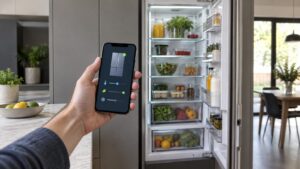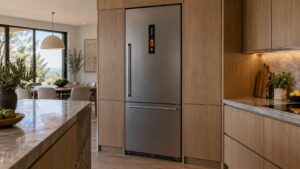
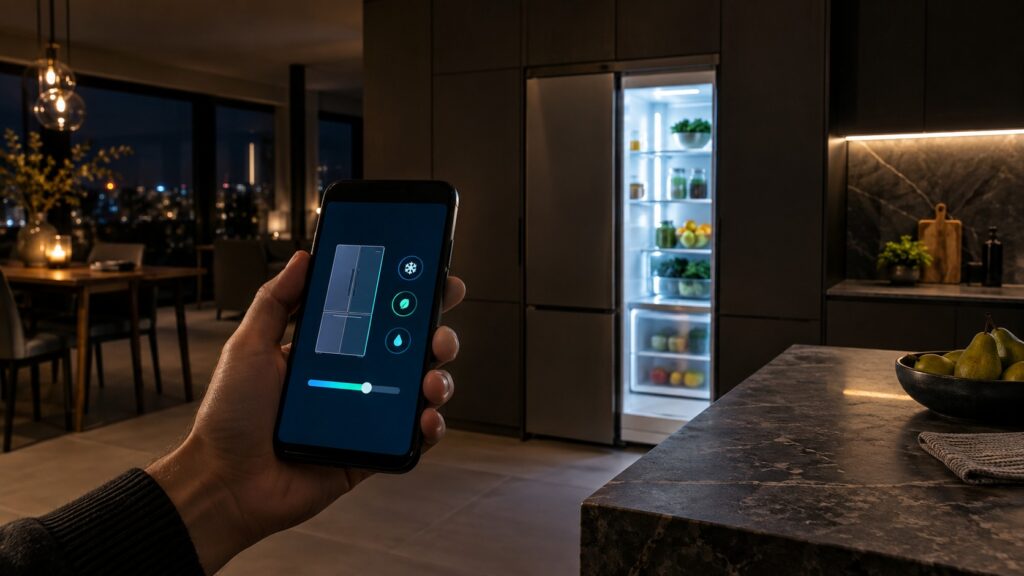
How Liebherr SmartDeviceBox works comes down to one relay job: it sits on the appliance’s internal data bus and translating what the control board already knows — temperature, door state, alarm flags — into messages it can send over Wi-Fi to Liebherr’s cloud service, which then pushes them to your phone. The appliance’s control board does not talk to the internet directly; it talks to the SmartDeviceBox over a short internal connection, and the box handles everything related to the home network and the app. That separation is why a Wi-Fi outage never affects cooling, and it is the key to understanding both what the module can do and where it tends to run into trouble.
Why doesn’t a Wi-Fi outage stop the appliance from cooling?
Because the control board’s core job — running the compressor, timing the defrost cycle, sounding the door alarm buzzer — was designed to work without any network at all, long before SmartDeviceBox connectivity existed as a feature. The module is added on top of that existing system rather than built into its safety loop. When the SmartDeviceBox loses its connection, the only thing that changes is that status updates stop reaching your phone; the appliance keeps running its programmed cycle exactly as before, using only its own internal sensors and logic.
This is a deliberate design choice across the industry, not just at Liebherr: a refrigerator that depended on an internet connection to keep food cold would be a serious liability every time a router failed or an internet provider had an outage.
How does the app know your door is open or your unit is warm?
The control board already monitors a door switch and an internal thermistor to run its own door-alarm buzzer and compressor cycle — features that predate app connectivity. The SmartDeviceBox reads those same signals rather than adding new sensors, then packages them into a message the app can display as a push notification. That is why an alert on your phone and the appliance’s own physical alarm tend to fire around the same time: they are reading the same underlying sensor, just through two different output paths.
Why does the module need a 2.4GHz network specifically?
The radio hardware inside most SmartDeviceBox modules supports the 2.4GHz Wi-Fi band, which reaches farther through walls and cabinetry than 5GHz at the cost of slower top speed — a reasonable tradeoff for a device sending small status messages rather than streaming video. Many home routers broadcast both bands under one network name today, which can cause a phone or a smart plug to quietly connect on 5GHz while the SmartDeviceBox cannot see that band at all. Splitting your router’s 2.4GHz and 5GHz networks into separate names, even temporarily, is the most reliable way to make sure the module joins the band it actually supports.
What happens during a firmware or app update?
Liebherr periodically updates the SmartDevice app and, less often, the firmware inside the SmartDeviceBox itself. During a firmware update, the module briefly disconnects from the cloud service while it installs the new version, which can look like a lost connection in the app for a few minutes. The appliance itself is not paused or affected by this process — cooling, defrost, and alarms continue exactly as normal, because the update only touches the connectivity module, not the control board that runs the appliance. Most of these updates happen automatically in the background without any action needed from you, though on some models a temporary loss of remote alerts right after an update is normal and resolves itself within a few minutes as the module reconnects and re-registers with the cloud service.
Does the mechanism differ between a Monolith column and a freestanding refrigerator?
The underlying process is the same — sensor data, internal poll, cloud message, push alert — but the physical placement of the module differs. On a Monolith column, the SmartDeviceBox sits near the top of the built-in cabinet, close to where the control display already lives, which also happens to be the best position for Wi-Fi signal to reach through the surrounding cabinetry. On a freestanding refrigerator, the module is typically fitted closer to the main control board at the top of the unit. Neither placement changes how the module behaves, but it does explain why signal strength can vary between a Monolith installed deep in cabinetry and a freestanding unit sitting in open air.
Understanding this data path also explains a common troubleshooting pattern: when only some alerts arrive — say, door alerts but not temperature alerts — the control board is very likely reporting correctly and the gap is in which message types the cloud service is set to push, a setting handled in the app rather than a partial hardware fault.
It is worth being specific about what “connected” means at each step, because a technician troubleshooting a report of “the app doesn’t work” needs to know which of the five steps actually failed. A module that shows a solid status light but never appears in the app has likely failed at the cloud-registration step, not the Wi-Fi step — the fix there is usually re-running the pairing sequence from scratch rather than changing any network settings. A module with a blinking or unlit status light, by contrast, points at the Wi-Fi step itself, and checking the router’s band settings is the more useful first move. Confusing the two wastes time: re-pairing a unit that already reached the cloud will not fix a Wi-Fi signal problem, and adjusting Wi-Fi settings will not fix a registration failure that already has a good signal.
Where to go from here
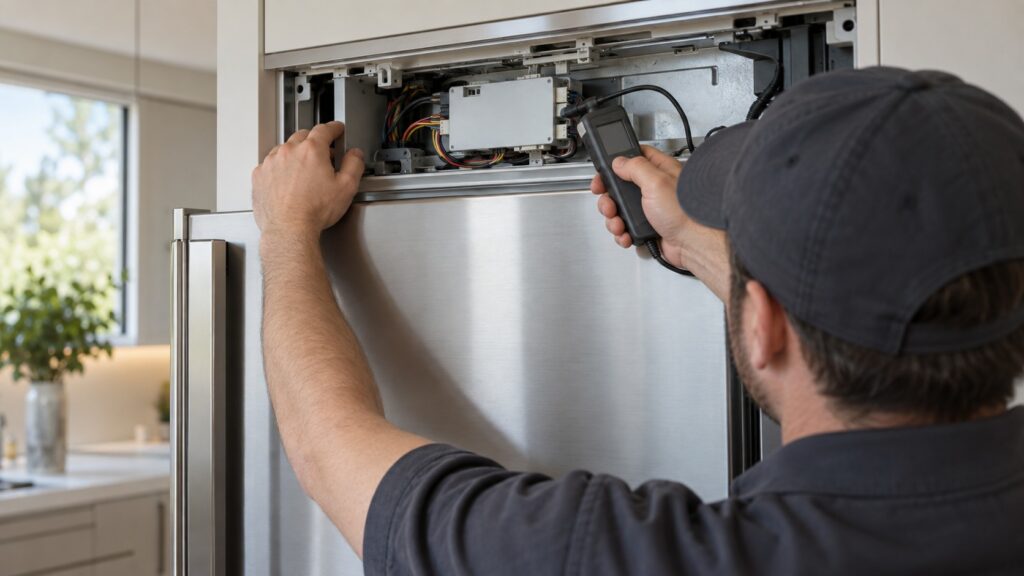
If you understand the mechanism but the connection still will not hold, our SmartDeviceBox glossary guide covers what to check first, and our SmartDevice Wi-Fi setup guide walks through pairing step by step. For the alert types worth turning on once connected, see our SmartDevice alerts tips. If a persistent connectivity code keeps returning on the display itself, that points toward a hardware issue rather than a network one, and it is worth having a Liebherr specialist take a look — you can schedule a visit to have the module tested directly.